
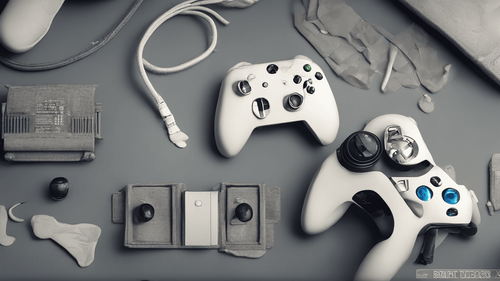
Gaming enthusiasts around the world understand the pivotal role a controller plays in shaping their gaming experience. The Xbox Controller, a central component of the Xbox gaming ecosystem, has undergone remarkable evolution and innovation over the years. In this comprehensive guide, we delve into the intricacies of Xbox controllers, exploring their history, features, customization options, compatibility, troubleshooting, and more. Whether you're a casual gamer or a seasoned pro, this guide is your one-stop resource to mastering the art of gaming with Xbox controllers.
Understanding the Evolution of Xbox Controllers
From the inception of the original Xbox to the latest Xbox Series X, the evolution of Xbox controllers has been a testament to technological advancement and user-centric design. Let's explore the key milestones:
The Birth of Xbox Controller: A Nostalgic Overview
The Xbox journey began with the iconic Duke controller, a hefty yet groundbreaking device that laid the foundation for future innovations. The introduction of the Xbox Controller S marked a pivotal shift towards a more ergonomic design, setting the stage for enhanced gameplay comfort.
Wireless Revolution: Introducing Wireless Xbox Controllers
The advent of wireless technology revolutionized gaming. The Xbox 360 Wireless Controller introduced gamers to the joys of cable-free gameplay, providing increased mobility and reducing clutter.
Xbox One Controller: Merging Tradition with Innovation
The Xbox One Controller retained the familiar layout while incorporating innovative features like Impulse Triggers, enhancing immersion through tactile feedback. Its refined design and compatibility with Windows PCs broadened its usability.
Xbox Series X Controller: Pinnacle of Precision and Performance
The latest Xbox Series X Controller builds upon its predecessors, introducing advanced features like the Share button for seamless content sharing. Its ergonomic design, textured grips, and improved latency make it a choice tool for competitive gaming.
Exploring Xbox Controller Features
Understanding the diverse features of Xbox controllers is essential for maximizing your gameplay experience. Let's delve into some of these features:
Ergonomic Design: Comfort in Your Hands
Xbox controllers are renowned for their comfortable grip and well-balanced design, allowing for extended gaming sessions without discomfort. The strategically placed buttons and triggers enhance accessibility and ease of use.
Impulse Triggers: Immersive Sensory Feedback
The incorporation of Impulse Triggers in the Xbox One and Xbox Series X controllers provides an immersive experience by delivering precise vibration feedback corresponding to in-game actions, heightening realism.
Precision Thumbsticks: Aiming for Excellence
The thumbsticks of Xbox controllers are designed for optimal precision, enabling gamers to execute precise movements, whether it's navigating open-world environments or aiming down sights in FPS games.
Customization Options: Tailoring Your Experience
Xbox controllers offer various customization options, from interchangeable thumbsticks and D-pads to personalized color schemes. The Xbox Design Lab takes this a step further, allowing you to create a truly unique controller.
Wireless Connectivity: Unrestricted Gameplay
With wireless connectivity, Xbox controllers offer the freedom to play from a distance, eliminating the constraints of wired controllers. The low-latency wireless connection ensures a seamless gaming experience.
Achieving Compatibility and Connectivity
Xbox controllers boast remarkable compatibility, extending beyond the Xbox console itself. Let's explore the various ways you can connect and use Xbox controllers:
Xbox Console Compatibility: Plug and Play
Xbox controllers seamlessly sync with Xbox consoles, providing a hassle-free setup experience. Simply pair the controller with your console, and you're ready to immerse yourself in your favorite games.
PC Gaming with Xbox Controllers: Windows Compatibility
For PC gamers, Xbox controllers offer a plug-and-play experience on Windows computers. The integrated Xbox Wireless technology ensures a reliable connection, and Windows automatically detects the controller.
Mobile Gaming: Xbox Controllers On-the-Go
Xbox controllers have expanded their reach to mobile gaming. With Bluetooth connectivity, you can connect your Xbox controller to compatible smartphones and tablets, enhancing your mobile gaming experience.
Cloud Gaming: Xbox Controllers in the Cloud
The integration of Xbox controllers with cloud gaming services like Xbox Cloud Gaming (formerly known as Project xCloud) opens up a new realm of possibilities. Game on a variety of devices with the power of the cloud.
Enhancing Your Gameplay: Xbox Controller Tips and Tricks
Elevate your gaming prowess by mastering these tips and tricks that cater to both beginners and seasoned players:
Button Mapping: Tailoring Controls to Your Style
Xbox controllers allow for button mapping, empowering you to customize the layout to suit your playstyle. Remap buttons for quick access to specific actions, giving you a competitive edge.
Using Accessories: Unleashing the Full Potential
Accessories like extended thumbsticks, controller grips, and trigger stops can enhance your controller's functionality. These add-ons provide better control and comfort during intense gaming sessions.
Adjusting Sensitivity: Aiming with Precision
Fine-tuning the sensitivity of your thumbsticks can significantly impact your aiming accuracy. Experiment with different sensitivity levels until you find the sweet spot that aligns with your gameplay style.
Optimizing Trigger Sensitivity: Rapid Fire Advantage
In games that require rapid firing, adjusting trigger sensitivity can give you a distinct advantage. Decrease trigger travel time for quicker firing, making it easier to dominate in action-packed scenarios.
Firmware Updates: Keeping Your Controller Current
Regularly update your Xbox controller's firmware to ensure compatibility with the latest games and features. Microsoft often releases updates that address bugs and introduce optimizations.
Troubleshooting Common Xbox Controller Issues
Even the most reliable controllers can face issues. Here's how to troubleshoot some common problems:
Connection Problems: Ensuring a Solid Link
If your Xbox controller is having trouble connecting, ensure that it's properly paired with your console or device. Check for interference from other wireless devices and make sure your controller's batteries are charged.
Button Responsiveness Issues: Staying Responsive
In case your buttons are unresponsive or sticking, gently clean around the affected area using compressed air. Avoid using liquids that could damage the controller.
Drifting Thumbsticks: Calibrating Your Controller
Thumbstick drift can impact gameplay. To fix this, access your console's settings to recalibrate the thumbsticks. If the problem persists, consider contacting Xbox Support for further assistance.
Audio Jack Problems: Clear Communication
If your audio jack is malfunctioning, ensure that it's properly connected and that the headset you're using is fully compatible with the Xbox controller. Check for any debris that might be obstructing the connection.
FAQs: Answering Your Queries
Are Xbox controllers compatible with previous console generations?
Yes, Xbox controllers are backward compatible with certain previous console generations, allowing you to use them across different Xbox models.
Can I use third-party controllers with Xbox consoles?
While third-party controllers may offer compatibility, it's recommended to use official Xbox controllers to ensure optimal performance and compatibility.
Do Xbox controllers work with game streaming services?
Absolutely, Xbox controllers are designed to work seamlessly with game streaming services, providing a consistent gaming experience across various devices.
Can I use an Xbox controller on a Mac computer?
Yes, you can connect an Xbox controller to a Mac computer via Bluetooth or USB. Many games that support controllers on Mac will work with Xbox controllers.
How do I clean my Xbox controller?
To clean your Xbox controller, use a soft, lint-free cloth to wipe away dirt and grime. For harder-to-reach areas, a cotton swab dipped in rubbing alcohol can be used.
Is it possible to use an Xbox controller without batteries?
Yes, you can use an Xbox controller without batteries by connecting it to the console or a PC using a USB cable. This way, the controller draws power directly from the device.
In Conclusion: Elevate Your Gaming Experience with Xbox Controllers
The evolution of Xbox controllers has transformed gaming into a captivating journey of immersion and precision. From their ergonomic design to advanced features, these controllers have redefined the way we interact with virtual worlds. Whether you're a casual gamer seeking comfort or a competitive player striving for excellence, Xbox controllers offer the tools you need to take your gaming experience to unprecedented heights. Explore customization, conquer compatibility, and embrace innovation as you embark on an unforgettable gaming adventure with the Xbox controller in hand.
Now, armed with comprehensive knowledge and expert insights, you're ready to unleash the full potential of your Xbox controller and master every gaming challenge that comes your way.